

Key takeaways
- Mini-LED creator laptops with the cores and RAM virtual machines demand: three Amazon-checked picks with 16 to 24 cores and 32GB to 64GB of memory.
Running virtual machines on a creator laptop is really two purchases in one. The VM side wants cores and memory it can reserve without starving the host, while the creator side wants a panel accurate enough for grading and design work. Mini-LED narrows the field sharply: most creator laptops ship with OLED or plain IPS, and many high-core machines are gaming models with ordinary screens. The real decision is how much CPU and RAM your virtual lab needs before the display even enters the conversation.
This shortlist serves three groups: developers who keep several Linux guests open beside an IDE, IT learners building Windows and server labs, and video or 3D creators who test renders and plug-ins inside a clean guest OS. Every pick below was chosen from the names and specifications printed on its Amazon listing, and each one pairs a listing-stated Mini-LED display with a creator-class processor and at least 32GB of memory.
Quick Picks
As an Amazon Associate we earn from qualifying purchases.
| Product | Best for | Key spec from title |
|---|---|---|
| Lenovo Yoga Pro 9i 16 | Hyper-V labs plus color-accurate creative work | 16″ 3.2K Mini-LED 165Hz 1200-nits display |
| MSI Creator 16 AI Studio A1VHG-073US | Running several guests at once with maximum memory | 64GB DDR5 RAM with 16″ UHD+ Mini LED display |
| Razer Blade 16 | CPU-heavy VM labs that need the most cores | Intel Core i9-14900HX 24-core CPU with Dual Mode Mini LED display |
How to Choose
Give virtual machines cores, not just clock speed
A hypervisor divides the processor among every guest you run, so core count decides how many virtual machines stay responsive at once. A 24-core Intel Core i9-14900HX can hand four vCPUs to three separate guests and still leave the host comfortable, while a six-core chip starts swapping the moment two guests compile or render together. Check that the listing names a creator-class HX or H processor rather than a low-power U-series part, and confirm virtualization support is enabled in the BIOS. Efficiency cores help with background guests, but performance cores do the heavy lifting, so weight your decision toward chips with more of them.
Treat memory as the ceiling you cannot raise later
Every running guest reserves its share of RAM before it does anything useful, and the host needs memory too. A 32GB laptop comfortably carries two mid-size guests, such as a Linux development box with 8GB and a Windows test machine with 12GB, while a 64GB configuration keeps four or five guests resident alongside a browser and an editor. The catch is upgradability. The Lenovo below solders its LPDDR5X memory, so the capacity on the listing is the capacity for life, while the MSI uses two DDR5 sockets you can populate yourself. For VM work, buying memory headroom up front is almost always cheaper than replacing the laptop.
Match the Windows edition to your hypervisor
Hyper-V only ships with Windows 11 Pro, so the operating system line on a listing matters more than most buyers expect. The Lenovo here includes Windows 11 Pro and can host Hyper-V guests the day it arrives. The MSI listing specifies Windows 11 Home, which rules Hyper-V out until you pay for an upgrade, although VMware Workstation and VirtualBox still run fine on it. Decide which hypervisor your workflow actually uses before ordering, and also check whether you need nested virtualization for labs that run containers or emulators inside a guest, since that leans on both the CPU and the right Windows edition.
Read the Mini-LED panel details, not the badge
Mini-LED backlights divide the screen into local dimming zones, which is why these panels hold deep blacks beside bright highlights instead of washing out the way edge-lit IPS does. For creator work, compare the figures printed on each listing: resolution, color coverage, and peak brightness. The Lenovo reaches 3.2K resolution with 100% Adobe RGB coverage and 1200 nits, which suits print and photo work, while the MSI and Razer panels cover 100% DCI-P3 for video grading. That accuracy matters when a guest OS is where you proof color before exporting on the host, so do not trade the panel away for a slightly faster chip.
The 3 Best Options
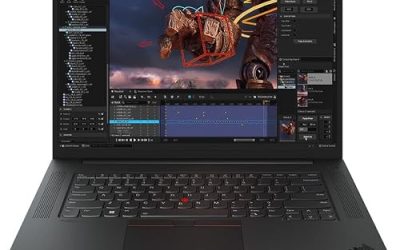
Lenovo Yoga Pro 9i 16

The Yoga Pro 9i is the balanced choice for creators whose VM use is steady rather than extreme. Its Core Ultra 9 185H brings 16 cores to the host, and the 32GB of memory covers a Linux development guest and a Windows test guest running side by side. Windows 11 Pro is installed, so Hyper-V works without an upgrade, and the 3.2K Mini-LED touchscreen with full Adobe RGB coverage doubles as a genuinely accurate grading panel. Pick it if your guests support your creative work rather than replacing it.
Specs
- Processor: Intel Core Ultra 9 185H (E-cores up to 3.80 GHz, P-cores up to 5.10 GHz)
- Graphics: NVIDIA GeForce RTX 4060 Laptop GPU, 8GB GDDR6
- Memory: 32GB LPDDR5X-7467MHz (soldered)
- Storage: 1TB SSD M.2 2280 PCIe Gen4 TLC
- Display: 16″ 3.2K (3200 x 2000) Mini-LED, touch, HDR 1000, 100% Adobe RGB and 100% DCI-P3, 1200 nits, 165Hz
- Operating system: Windows 11 Pro
- Wireless: Wi-Fi 6E and Bluetooth 5.3
- Camera: 5MP RGB+IR with dual array microphone and electronic privacy shutter
Best for: Creators who want Hyper-V ready out of the box and a color-accurate touchscreen for photo and print work.
Watch out for: The 32GB memory is soldered, so it cannot be upgraded later; count your planned guests against it before ordering.
ASIN: B0DBX5VKLH
MSI Creator 16 AI Studio A1VHG-073US

The Creator 16 AI Studio is built for the heaviest labs in this roundup. Its 64GB of DDR5 memory is double what the other two machines carry, so four or five guests can stay resident while editing software runs on the host, and its pair of 1TB drives lets you keep VM images on a separate SSD from your project files. The RTX 4080 also gives GPU-heavy creative work real headroom. The trade-off sits in the operating system line: the listing specifies Windows 11 Home, so plan on VirtualBox or VMware, or an edition upgrade, if Hyper-V is essential.
Specs
- Display: 16″ UHD+ (3840 x 2400) 120Hz Mini LED, HDR 1000, 100% DCI-P3
- Processor: Intel Core Ultra 9 185H, 16 cores (3.8GHz to 5.1GHz, 24MB Intel Smart Cache)
- Graphics: NVIDIA GeForce RTX 4080, 12GB GDDR6
- Memory: 64GB (2 x 32GB) DDR5 5600MHz
- Storage: 2TB (2 x 1TB) PCIe NVMe SSD
- Operating system: Windows 11 Home
Best for: Heavy multi-guest labs that need 64GB of memory and separate SSDs for VM images.
Watch out for: The listing specifies Windows 11 Home, so Hyper-V is unavailable without an edition upgrade; confirm the exact configuration and seller warranty before ordering.
ASIN: B0D2D3K4VY
Razer Blade 16

The Blade 16 answers a different question: how many cores can a 16-inch creator machine carry? Its Core i9-14900HX has 24 cores, the most here, which makes it the natural host for CPU-bound labs such as compiling inside several guests or running a small virtual network. The dual-mode Mini-LED panel switches between a UHD+ 120Hz mode for detailed creative work and a faster FHD+ mode, and the 2TB SSD swallows large VM libraries. Its gaming roots show in the styling, but the listing’s own creative mode and color accuracy keep it relevant here.
Specs
- Display: 16″ Dual Mode Mini LED, UHD+ 120Hz and FHD+ 240Hz modes, 100% DCI-P3, Calman Verified
- Processor: Intel Core i9-14900HX, 24 cores, up to 5.8 GHz max clock
- Graphics: NVIDIA GeForce RTX 4080
- Memory: 32GB RAM
- Storage: 2TB SSD
- Operating system: Windows 11
Best for: CPU-bound labs that compile or simulate inside several guests at once.
Watch out for: The listing names Windows 11 without stating the edition; verify it is Pro if your lab depends on Hyper-V.
ASIN: B0CPP96KW2
Which One Fits Your Situation
You develop in Linux guests but create on Windows
Choose the Lenovo Yoga Pro 9i. Windows 11 Pro unlocks Hyper-V straight away, the 32GB of memory holds a Linux development guest and a Windows test guest at the same time, and the 3.2K Mini-LED panel covers the full Adobe RGB gamut for design work on the host. It is the only machine here that needs no extra steps before your lab and your creative apps share the same desk.
You run a multi-VM lab for study or certification
Choose the MSI Creator 16 AI Studio. Memory decides how many lab machines can stay powered on together, and its 64GB doubles the other options here, while the two 1TB SSDs let you snapshot and clone guests without fighting for space. Run the lab in VirtualBox or VMware Workstation, since the listing ships Windows 11 Home, and the 16-core Ultra 9 still gives every guest a fair share of processor time.
Your guests compile, render, or simulate all day
Choose the Razer Blade 16. Long compile queues and simulation jobs inside guests are limited by processor throughput, and the 24-core Core i9-14900HX is the strongest chip in this group. The 2TB SSD keeps big guest images local, and when the lab work pauses, the dual-mode Mini-LED panel’s UHD+ mode gives you a sharp, color-accurate screen for editing and layout work on the host.
You grade video and test exports inside a clean guest
Choose the MSI Creator 16 AI Studio. Its UHD+ Mini-LED panel covers the full DCI-P3 gamut used for video work, and the RTX 4080 accelerates exports and effects on the host while a guest OS runs a clean test environment beside it. With 64GB of memory, that guest never has to close when a render starts, which is exactly the workflow this machine was specced for.
Common Mistakes
- Buying on core count alone and ignoring memory: four guests with too little RAM will swap to disk and feel slower than two guests on a machine with half the cores.
- Assuming Windows 11 always includes Hyper-V: the Home edition leaves it out, so check the operating system line on the listing against the hypervisor you actually plan to run.
- Storing every VM image on the same nearly full SSD as your project files: guests grow through snapshots, and a drive with no free space corrupts lab work at the worst moment.
- Trusting the words Mini-LED in a headline without reading the specification block: some listings mix panel types across configurations of the same model, so confirm the exact configuration you are ordering.
- Allocating every core and gigabyte to guests: the host still runs your editor, browser, and the hypervisor itself, so leave at least a quarter of both resources unassigned.
Frequently Asked Questions
How much RAM do I need to run virtual machines on a creator laptop?
Plan on 32GB as the floor and 64GB if several guests stay open together. Give the host a quarter of the total, assign each desktop guest 4GB to 8GB, and reserve more for memory-hungry server or development guests. Because many creator laptops solder their memory, the amount on the listing is the amount you keep, so buy for the lab you expect in two years, not today’s.
Can these laptops run Hyper-V?
Only the Lenovo can out of the box, because its listing includes Windows 11 Pro, the edition Hyper-V requires. The MSI listing specifies Windows 11 Home and the Razer listing names Windows 11 without an edition, so confirm before ordering if Hyper-V matters to you. VMware Workstation and VirtualBox run on any edition, which is why the MSI still works well as a lab machine.
Does a Mini-LED display actually help with virtual machine work?
Indirectly, yes. The hypervisor does not care about the panel, but you will read guest consoles, terminals, and dashboards for hours, and Mini-LED local dimming keeps dark interfaces crisp instead of grey. The bigger benefit is consolidation: one machine with an accurate, bright panel replaces a separate grading monitor, so the laptop you bought for guests also covers color-critical creative work on the host without extra desk hardware.
How many virtual machines can I run at the same time?
Memory sets the real limit. On 32GB, expect two comfortable desktop guests beside the host, or three light ones with small allocations. The 64GB MSI stretches that to four or five typical guests. Core count then decides how responsive they feel under load: the Razer’s 24 cores keep more guests busy at once, while a 16-core chip asks you to stagger heavy jobs between machines.
More from Amazon
Programs that pair well with the guide above. Offers and eligibility are set by Amazon and may change.
Set up recurring deliveries of everyday items on eligible products. Terms and savings are set by Amazon.
Explore Subscribe & SaveCollect the home and kitchen items you want in one registry that guests can shop from.
Create a wedding registryFree shipping on eligible items, Prime Video and more. Eligible new members can start with a free trial.
Start a Prime free trialAudiobooks and podcasts to listen to on the go. Eligible new members can start with a free trial.
Try Audible freeAs an Amazon Associate we earn from qualifying purchases.









Write Your Review
No reviews yet. Be the first to share your experience!